
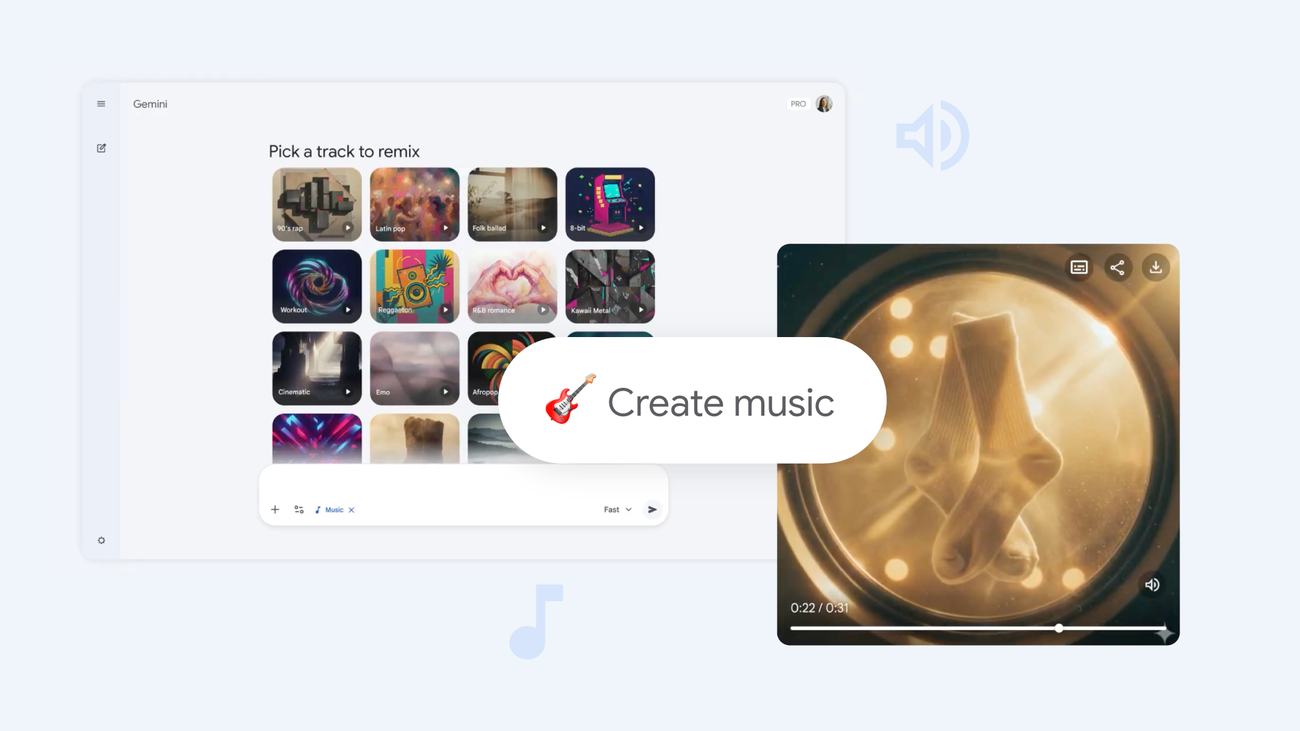
1. Start with text
You can write a prompt to create unique tracks with lyrics or instruments, such as: “Make a track about my favorite meal my mom used to make. It was made of rice, plantains and beans. Use an Afrobeats vibe and the singer should sound West African.” Or turn any moment, topic or inside joke into clues. For example: “Make a ’90s skate punk rock track to ask my roommate Ryan to do the dishes; high energy, fast drums.”
2. Upload a photo or video
With Lyria, you can also upload a visualization as inspiration. Try vacation photos, photos of your dog, or even your own artwork. Depending on who or what is in the photo or video, what they are wearing, what is in the background and so on, Lyria will generate a musical match.
3. Define the genre and era
If you don’t know where to start, start with something basic. Lyria can cover lots of genres and eras, like 90s hip-hop or 2000s pop. You can even mix different genres within one song. Want a catchy K-pop tune with a Motown edge? Or should you join classical violins for a funk number? It’s up to you.
4. Add details such as instruments, song dynamics and vocals
If you start with a genre and era like “1950s jazz,” your track will likely include saxophones and trumpets. But you can add other instruments, such as an 80s synth, to round out your sound. If you do not specify instruments, Lyria will automatically select instruments that match the genre. You can also decide how the music flows between sections. Perhaps a quiet piano builds into an explosive chorus; maybe there is a purely instrumental section. Lyria can also generate vocals: you can specify if the vocalist is male or female, if they’re a baritone or soprano – or maybe you have a full choir. Try adding vocal descriptions, such as rich, gritty, soulful or breathy. Or see how you can layer different vocal styles together. Maybe the vocals get quieter and quieter as the track progresses, or break up into harmonies.
5. Write your own texts – or ask Lyria to handle it
Share your own lyrics by using the code “Lyrics:” before the lines you’d like to hear (since tracks are 30 seconds, try to keep your lyrics short and sweet!). If you want backing singers to repeat the lead vocals, add it in parentheses like this: “Lyrics: Let’s Go (Go).” Or if you want Lyria 3 to generate lyrics for you, choose a clear theme with your prompt. You might want “a love song” or “a song about success.” Or maybe you want to write a “new birthday song” for your best friend.
6. Share your numbers
You can easily share whatever you create with Lyria 3: just download your track as an MP3 or MP4, then share it to social media or send it via text. It will definitely bring a new element to the group chat – try it today.